Participation in the Certification Procedure
The process of submitting applications for participation is the same for Certification, Auction, Request for Proposals, and Request for Quotations, and is divided into two stages: creation and editing of the application, followed by submission for consideration to the organizer.
Information about an application that has not been submitted is not available to the organizer.
Creating and Submitting an Application for Certification
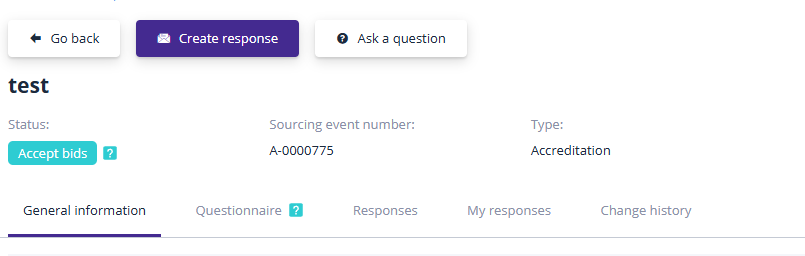
Applications can be submitted for procedures with the status "Accepting Applications" and are required to obtain certification. Multiple applications may be submitted for certification participation, but only one application can be submitted and pending review at a time.
To submit an application, navigate to the page of the certification procedure of interest and click the "Create Application for Participation" button:
Each application includes a questionnaire that must be completed before submission. The questionnaire may contain various types of questions, each subject to specific restrictions; for example, fields for entering Tax Identification Numbers (TIN) include validation checks for data accuracy. The questionnaire may also require providing a date, uploading files, or selecting appropriate values:
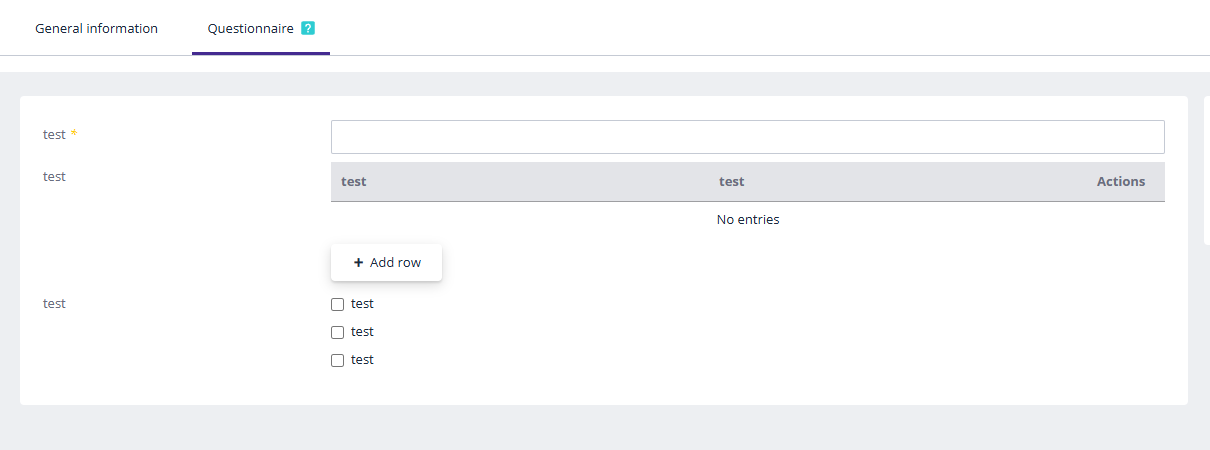
Mandatory questions in the questionnaire are marked with an asterisk (*).
The questionnaire may also include questions presented in a table format. To complete the table, add a row by clicking the "Add Row" button:

You can add as many rows as needed. Users can fill in all required information in the added rows. If an extra row is added, it can be deleted by clicking the "Delete" button:

Once all information in the questionnaire is completed, click "Save" to store the entered data:
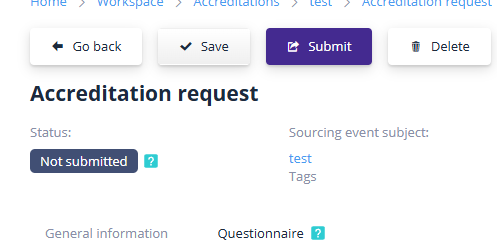
After completing the questionnaire, the participant can submit it by clicking the corresponding button:

Then confirm the action by clicking "Confirm":
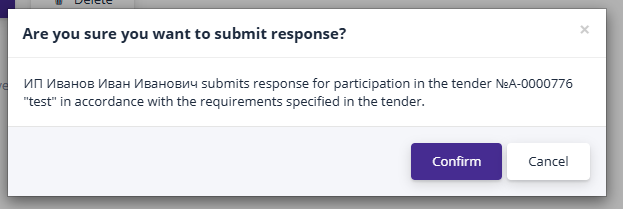
The application status will change to "Submitted" and will become available for the organizer to review and make a decision.
"Certification Applications" Section
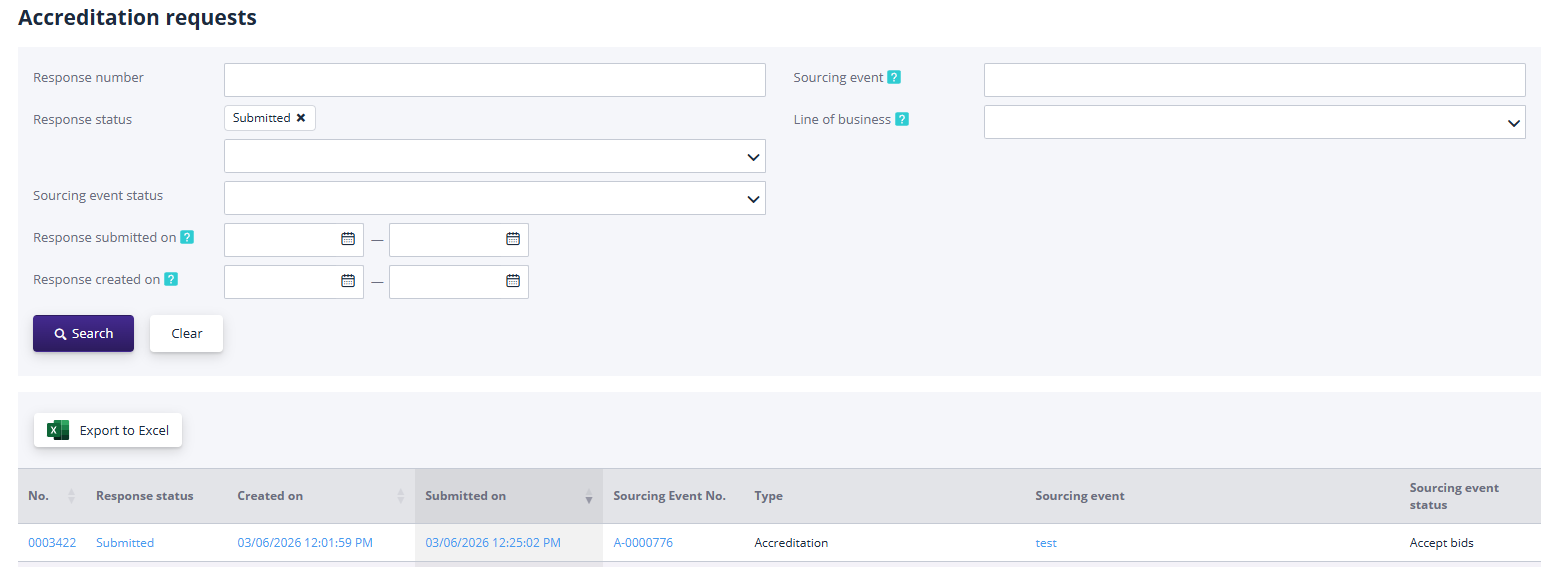
This section displays a list of all previously created applications for certification participation submitted by your organization. To access the application review page, click the "Certification Applications" link in the "User Account" menu.
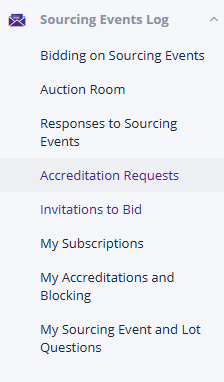
You can search applications by partial or full procedure name, procedure status, application status, and the submission date range: